.png)
Onboarding Step: Review and Deploy your First Blog
Onboarding Steps
- Review your Topic(s) (recommended)
- Review your Blog (recommended)
- Deploy to website/CMS (required)
Overview
The typical usage of our platform for content automation is to just go in and deploy the proposed blogs with none or very minimal review. The goal for us is to require 0 review from you.
For the first blog(s) we'd recommend looking at the topics + content and seeing if there are any Brand Guideline / Blog Settings tweaks.
Video Walk Through
Reviewing your Topics (preliminary step):
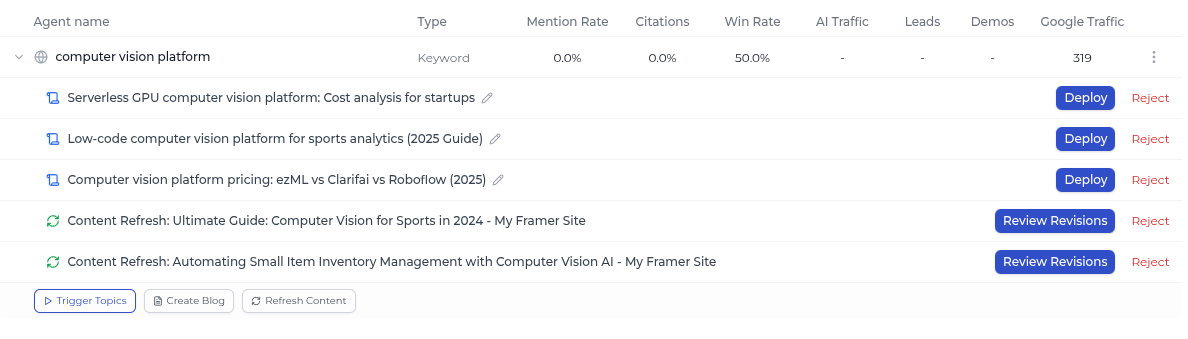
- On the Agents page, when you expand one of your Agents, you will see proposed topics:

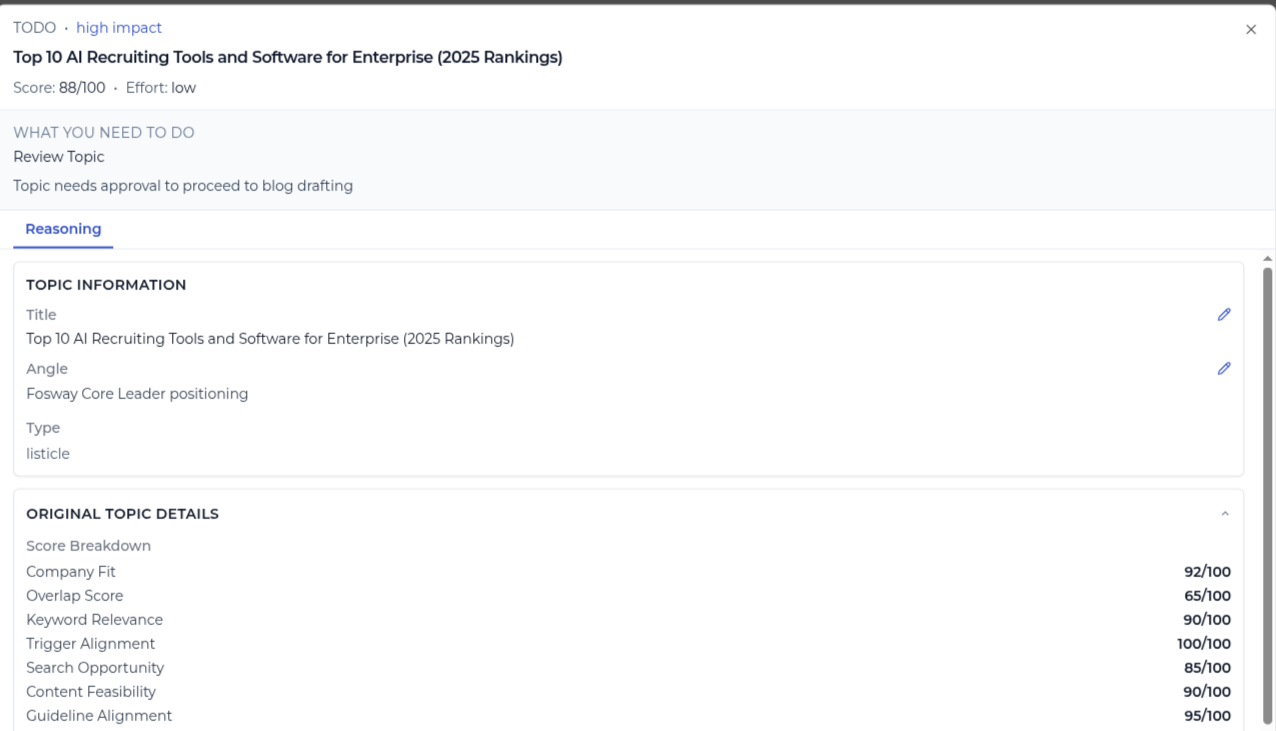
- You can click on the topic itself to see the rationale behind it:
- Shows proposed topic, its type, and the internal scoring on your brand guidelines and opportunity
- If you scroll down, you will see the "Query Insights" which is the real problem(s) our system identified, discussion examples, and search intent that was matched
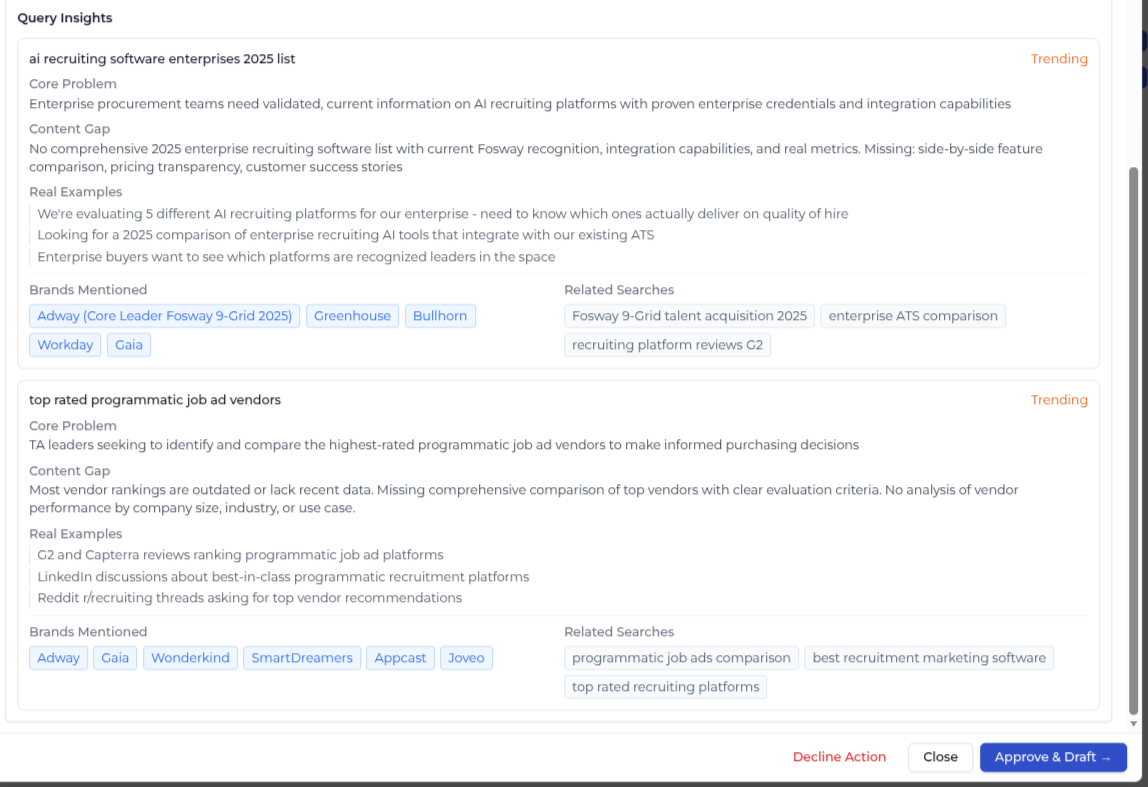
- For topics you like you should press "Draft" and it will write a SEO/GEO optimized blog on that topic. You will receive a notification when this is complete
Reviewing your Blogs
At this step, you should see generated blog drafts in 2 locations —
- Agents page
-
- Blog Proposals page > Blogs tab
-
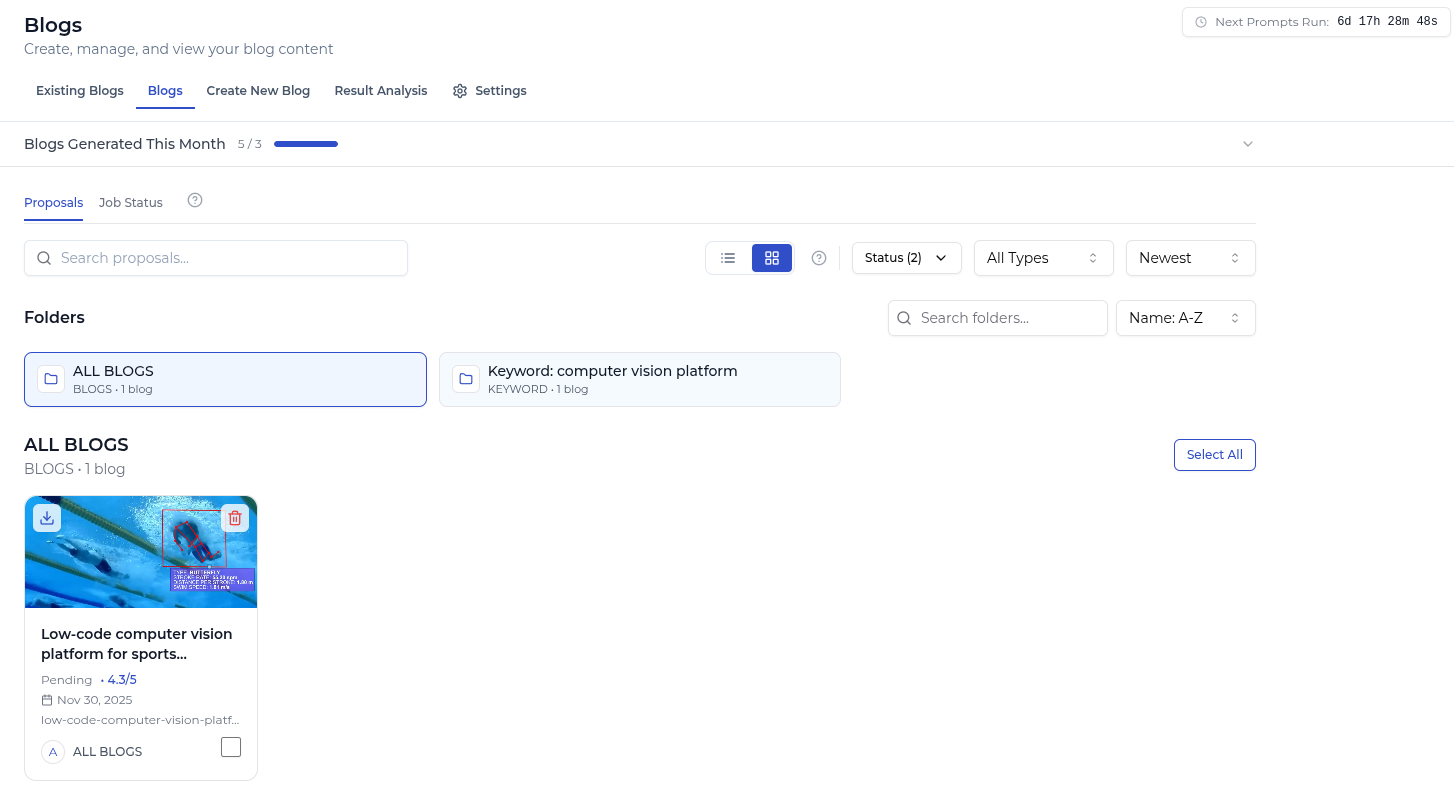
- Enter the individual blog page
- Blog Proposals Page > Blogs Tab: Just click on the blog you want to look at
- Agents page: Click on the action. You will be on the "Blog Draft" tab. Scroll to the bottom and press on "Review Full Draft in Editor"
- Explore generated blog (this will be on a page with the structure https://app.relixir.ai/dashboard/blog_proposals/[id] )
2.1. Overview
On this page you will have access to all the details of the generated blog post:
- Content: Tab that shows the primary content of the blog post without peripherals (like citations + FAQ) and allows editing
- FAQ: Shows generated FAQ section (crucial for matching AI search prompting intent)
- Citations: Shows all the sources that are used and referenced for creating the blog post
- JSON-LD: Structured schema data that is crucial for SEO + GEO visibility
- Revision History: Includes history of any content refreshes (newly generated content won't have any)

2.2. Content
On the Content tab you see the primary content of the blog post. When deploying, the content of the Citations and FAQ tabs will be included at the end of the primary content
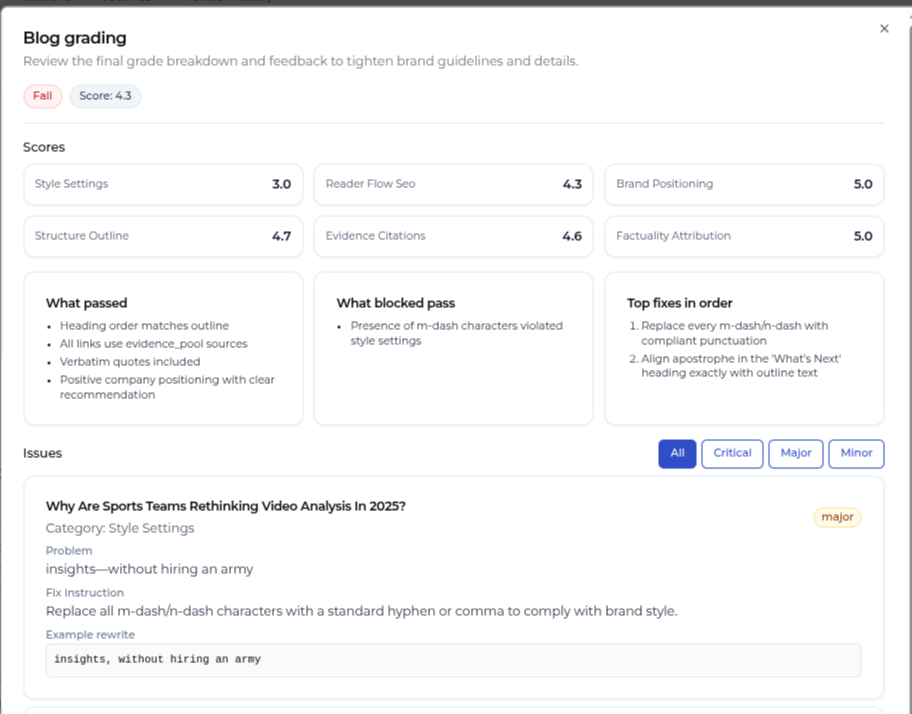
Each blog also has a graded score out of 5. This is graded based on your brand guidelines and other SEO/GEO factors

- In this case its 4.3/5
- You can then view more information by clicking on "View Grading"
-
- Typically these changes are small, but it depends on the complexity of your brand guidelines. For complex guidelines, this can be used as a reference for polishing. Otherwise in 99% of cases, you wouldn't need to act on the grading at all to have a great blog
2.3. Revision
There's 2 primary methods of revision:
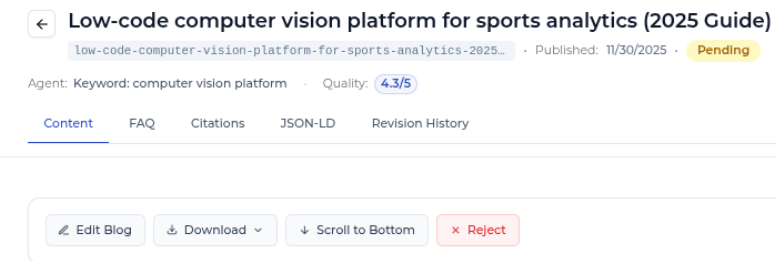
- Direct markdown editing — Click on "Edit Blog" (Shown below)
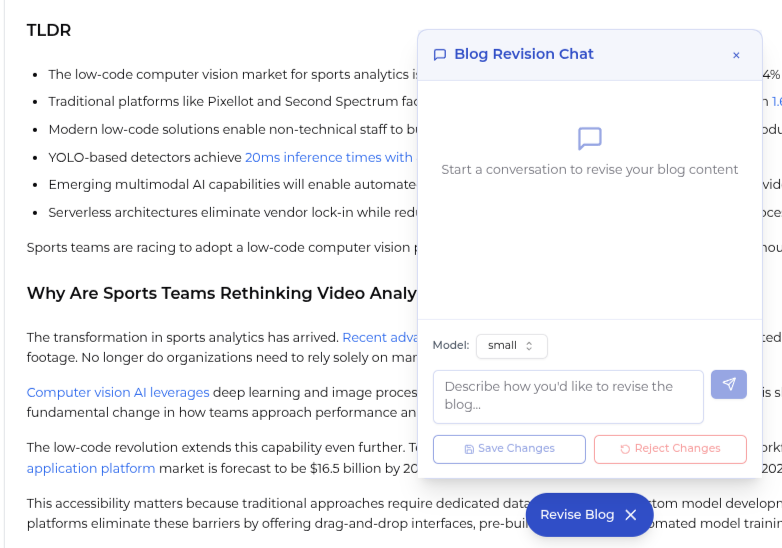
- AI revisions — Click on "Revise Blog" at the center bottom of the screen (Shown Below). You can then prompt it with update instructions
Blog Deployment to website/CMS
If you completed the previous step "Connect your CMS" you should be ready to go!
Without even going into the blog, you can just press "Deploy" as a shortcut from both the Agents page and Blog Proposals page:
However it does show up on the individual blog page as well ("Deploy to Framer" shown below):
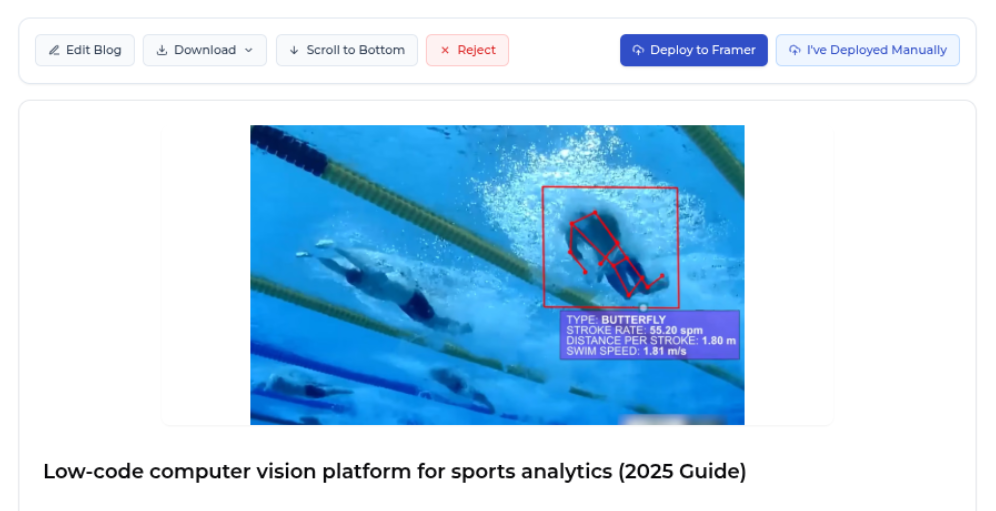
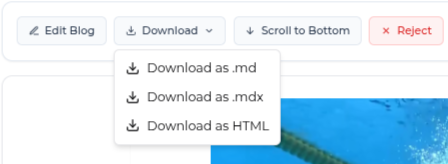
If the "Connect your CMS" step isn't completed or in progress, but you still want to use the generated content. You can download it and port it over manually (we support .md, .mdx, and .html):