.png)
Onboarding Step: Create your First Agent
Onboarding Steps
- Create Agent(s) based on your goals (Required)
- Update Agent(s) with additional guidelines (Optional)
Overview
Agents are how Relixir decides what content to create / refresh to hit your SEO/GEO goals.
- Each agent is tied to a goal you have — ranking for specific keywords or beating a specific competitor.
- Agents are triggered every week by default and propose the most impactful actions to take
- The agents then take progress snapshots on a weekly cadence to track improvement for the defined goal.
Creating new blog content that is SEO/GEO optimized and refreshing your old content are the primary actions you can take to optimize your visibility on AI Search and Google. Our agents cover both.
Video Walk Through
Required Steps
-
Go to the "Agents" page at https://app.relixir.ai/dashboard/action-center
- Click "+ New Agent" to trigger the agent creation pop-up

Agent Creation Form Definitions
|
Form Parameter |
Definition |
|
Agent Type (required) Set to either "Keyword" or "Competitor |
Set value based on the goal this agent should aim for (all actions the agent proposes will be around achieving the goal its tied to):
|
|
Language (default: English) |
Defines the language the content from that agent is generated in |
| Topic Count (required) | Defines number of blog topics the agent should propose every time its run |
| Refresh Count (required) | Defines max number of blog post refreshes the agent proposes every time its run |
|
Auto-approve Topics (required) Set to enabled/bisabled |
|
|
Run immediately after creation Set to enabled/disabled |
If enabled, as soon as you create the agent it will start generating the first set of blog topics (or blogs if auto-approve is enabled) and content refreshes |
| Track folder instead (optional) | If instead of selecting the full list of keywords you want an agent to focus on all the keywords in a folder, you can select this option |
-
Fill in the form based on your goals for this Agent and press "Create Agent"
- It will then show up on the agent list on the "Agents" page and you can expand it to view more details
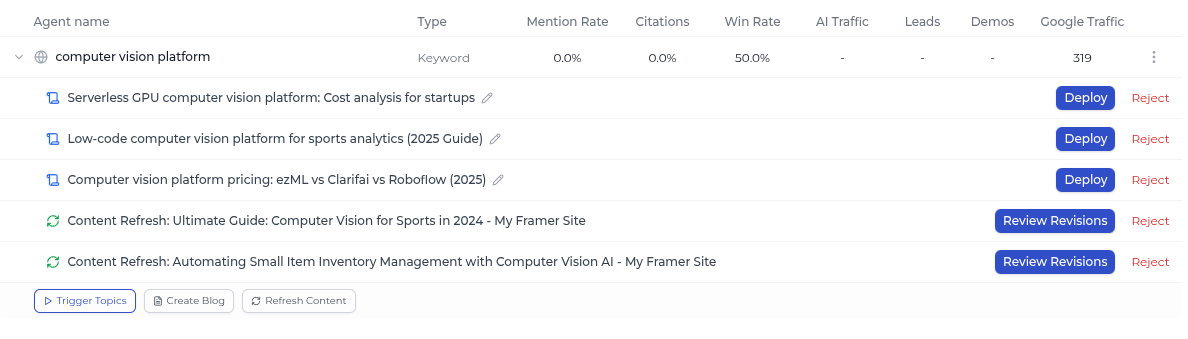
When an agent is expanded you will see:
- Top 5 actions proposed from that agent you can act on right away (eg. deploy blog to CMS, approve proposed topic, review content refresh proposal)
- Goal Performance Tracking: You will see various KPI metrics for each agent that are tied specifically to that Agent's goals.
- eg. mention rate for only the keywords that that agent is trying to improve your ranking for, google traffic [aka. impressions] solely driven from the actions this agent took
- Custom Action Buttons: By default the agent will be triggered every week, but if you want to trigger certain actions on-demand you can click on either "Trigger Topics", "Create Blog", or "Refresh Content".
|
Custom Action |
What it does |
| Trigger Topics |
Trigger proposing X number of topics right now for that agent's goals. (Skips to blog creation if auto-approve is enabled)
|
| Create Blog | Create a GEO/SEO optimized blog with a specific topic and angle you have in mind |
| Refresh Content | Trigger refreshing a specific blog you have (provide URL) or ask for X number of recommendations. |
Note: Each action takes time to execute — anywhere from 5-20 minutes. You will receive an email once its completed
Optional Steps
- Click on the vertical ellipsis in an agent's row to see other action options

- Edit Agent: Goes to editing form to set guidelines / update any agent settings
- Pause: If you don't want to have this agent have weekly snapshots and actions proposed but also not delete it, you can temporarily pause it.
- Click "Edit Agent" to open up the agent's editing form

Form Definitions
- [...includes the same parameters available for creation]
- Agent Guidelines: If you have any specific guidelines for this agent to follow around the topics to propose, content to generate, or sources to use, you can provide them in natural language here
- Blog Types: By default, all types of content is proposed by our agent, but you're also able to narrow it to specific types of content