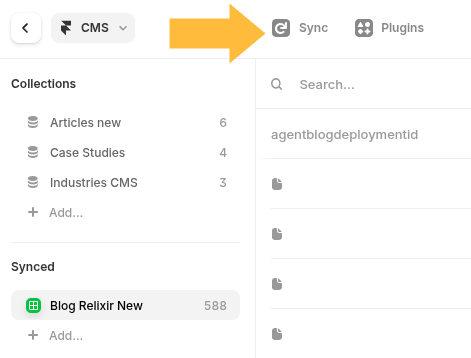
.png)
Framer and Google Sheets Step-by-Step Walk Through
Standard Relixir Blog CMS Export Structure
agentblogdeploymentid
slug
title
contentmd
contenthtml
thumbnail_url
date
jsonld
byline_html
bio_html
author_cms_reference_id
Google Sheets / Framer Guide
We will be covering exactly how to setup on Framer, but this can work for any major CMS that can import from Google Sheets.
- Enable Framer / Google Sheets Integration
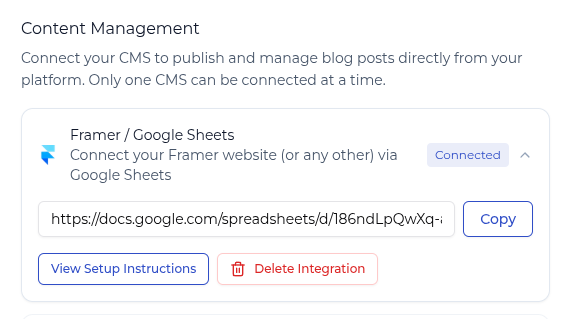
On the integration settings page , click enable so you see the google sheet url (like below)
- Add at least 1 blog to it (Google Sheets Integration needs at least 1 row)
2.1.
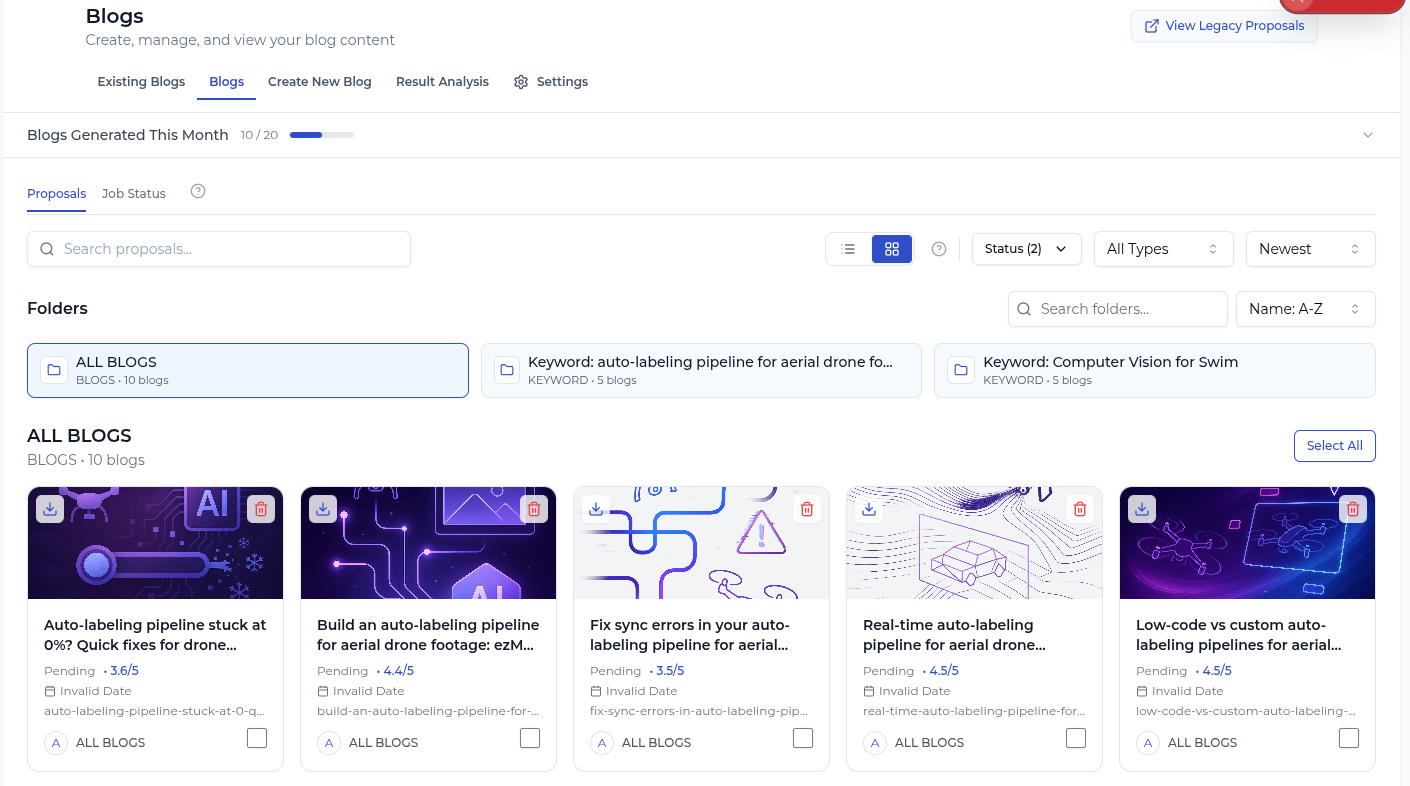
Find some on your blog proposals page (on the Blogs tab).
Note: If none are available, you can trigger more from the action center
2.2.
You can either click on the little check box in the bottom right of the blog post cards, or click into the blog itself to review it.

2.3. You will see a “Deploy to Google Sheets (Framer)” button, click on it to deploy
- Go to your CMS on Framer

- Add the Google Sheets Plugin
4.1. Click on the Plugins
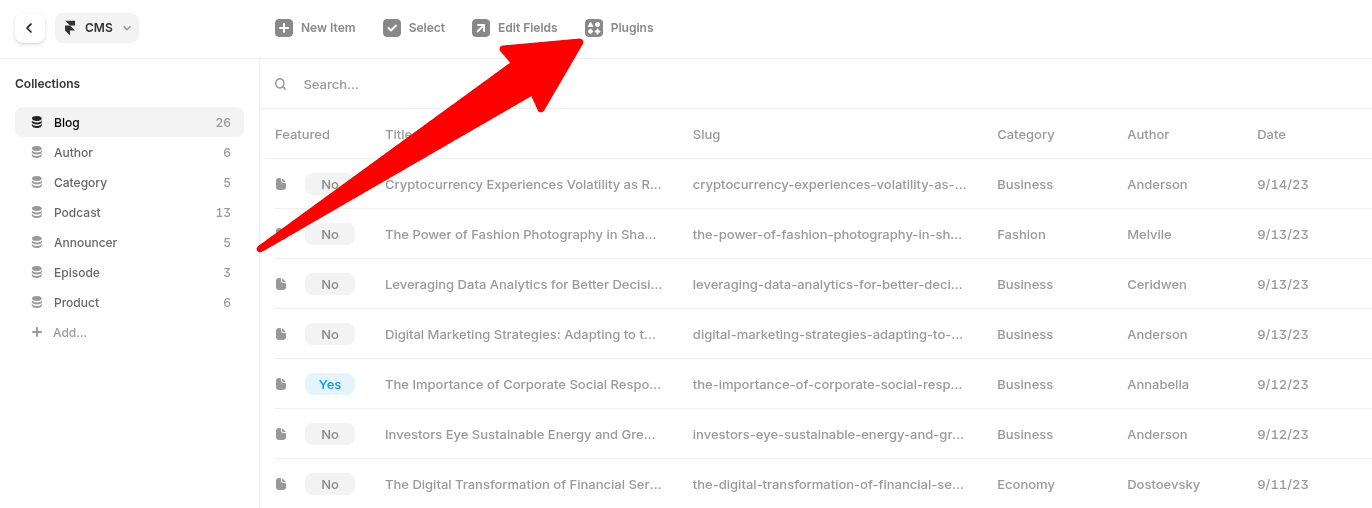
4.2. Find the Google Sheets Integration
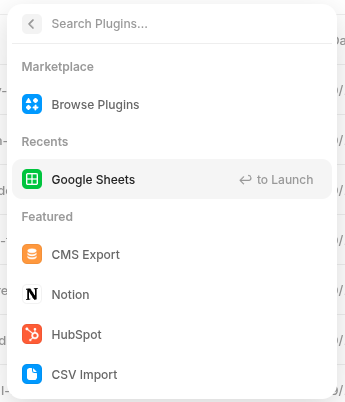
4.3. You will be prompted to name it, this doesn’t matter, eg. “Relixir Blogs”
4.4. Add in the Spreadsheet URL from Relixir’s platform (from Step 1) into the form input
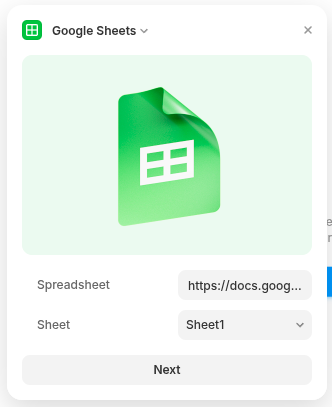
4.5. Select CMS FIelds and Types:
Short video showing the correct types and process: ezML – Framer.mp4
TLDR:
- Set “Slug” field to slug
- Set thumbnail_url to Image type
- Set date to Date type
- Set-up Blog Page
Set-up a blog page following up your existing design that reads from our CMS collection.
Or, if you’d like to have Relixir handle the website updates and maintenance, please book a call here, and we can take care of it + a lot more for you!
- Press "Sync" everytime you want to deploy a batch of new changes to your Framer site